Plan a new business or a big expense
Lay out a plan month by month, see how your cash looks ahead, then turn the plan into a budget when you're ready to start.
6 min read
What a plan is
A plan is a “what if” sum: starting money, then what goes out and comes in each month. Plans are kept apart from your books. They never post entries and never show up in reports or balances, so you can try any figures you like.
Plans are under Planning›Plans, in both the Simple and Advanced views. All amounts are in the space’s base currency.
Lay out the plan
Create the plan
Choose New plan, then fill in the Plan name, Starting money, Start month and Length (1 to 60 months). Choose Create plan.Add lines
Choose Add line for each expense or income you expect. Fill in the Name, pick the Kind (Expense or Income), then the Timing: One-time in one month, or Monthly from one month to another with an Amount per month.Group them if it helps
Lines with the same Group are shown together, for example every salary under People.
Read the result
The top of the plan shows Starting money, Planned income, Planned spending and the Money left at the end. Below are a chart of the money left and the Month by month table with money in, money out and the end balance of each month. Open a month to see its items.
If the balance drops below zero, the plan says so plainly, for example Money runs out in month 7. Add starting money, move spending or cut costs until the plan holds.
Want to try other figures without changing this one? Choose Copy, then put two to four plans side by side with Compare plans.
Planning a new business
Look at your cash ahead
A plan counts from its own starting money. To see how your real money will move, open Planning›Forecast.
Add expected items
Under Expected money in and out, choose Add item for money that isn’t in your books yet: a bonus, a big purchase or an instalment. Pick Money in or Money out, and One-time or Monthly.Open Look ahead
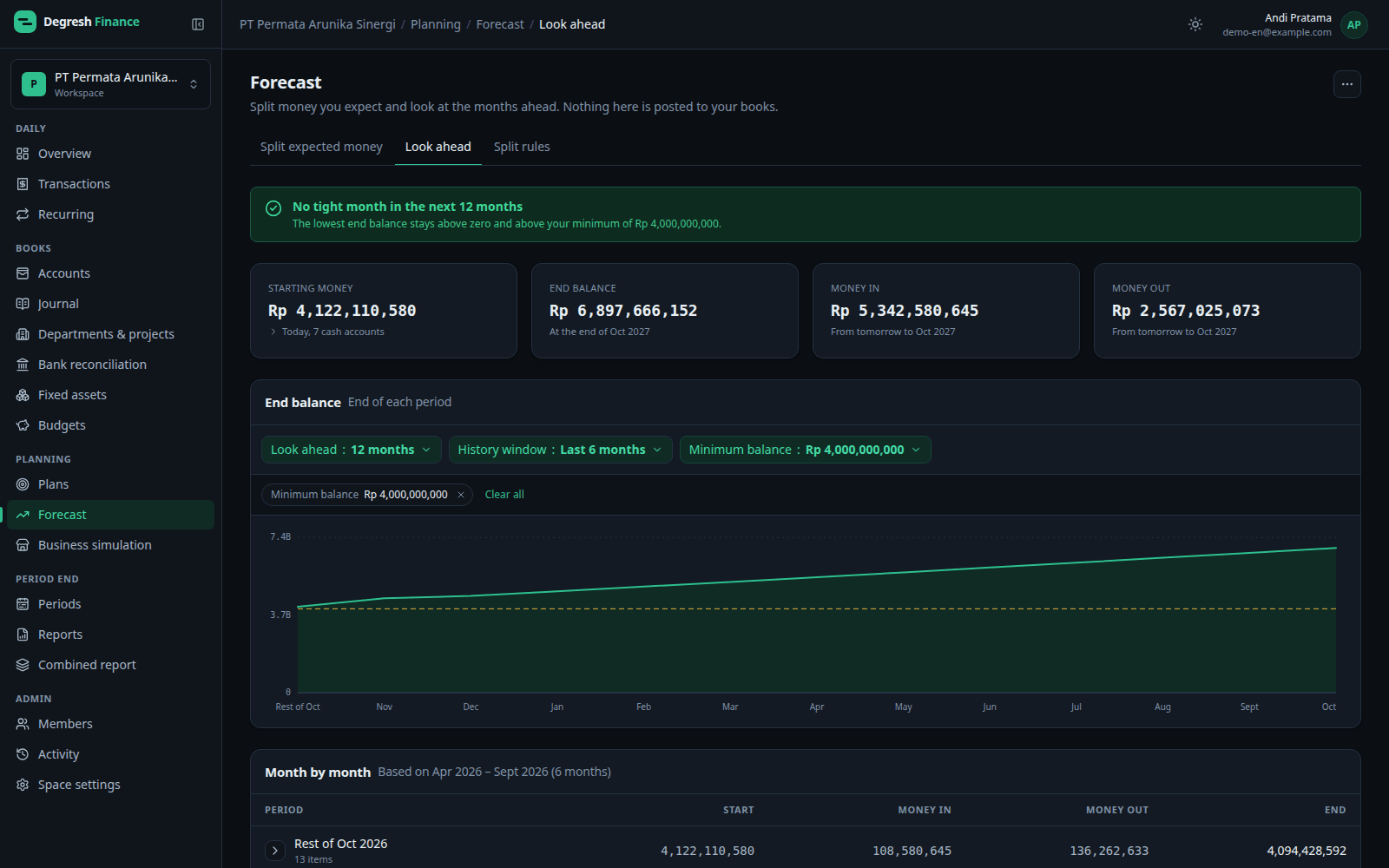
On the Look ahead tab, pick 3, 6 or 12 months and a History window. Fill in a Minimum balance if you always want some money left, then choose Apply.Watch for a tight month
The look-ahead starts from today’s balance of your cash accounts. If a month ends below zero or below your minimum, you see a flag such as Money gets tight in Mar 2027.
Each month’s figures come from recurring entries, then active budgets, then the history average for the other accounts, then the items you added. No account is counted twice, and every line names its source.
Turn it into a budget
When you’re ready to start, turn the plan into a budget to follow the real spending.
Choose Start this plan
On the plan, choose Start this plan.Match each expense line
Pick an account for every expense line. Group accounts are allowed, and lines matched to the same account become one limit. Income lines stay out of the budget.Make the budget
Choose Make the budget. It runs from the first day of the start month to the last day of the plan’s last month.
The plan becomes read-only
Keep or share it
The plan and Look ahead each have an Export button for PDF or Excel. Every export is kept in Generated reports, so others in the space can download the same copy.
Questions about this flow?
Our team is happy to help, including during early access.